In dit artikel vind je informatie over:
- Hoe ga je naar de review-instellingen
- Welke instellingen kun je vinden in dit onderdeel
- Slimme review
- Notificatie-instellingen voor review
1. Hoe ga je naar de review-instellingen
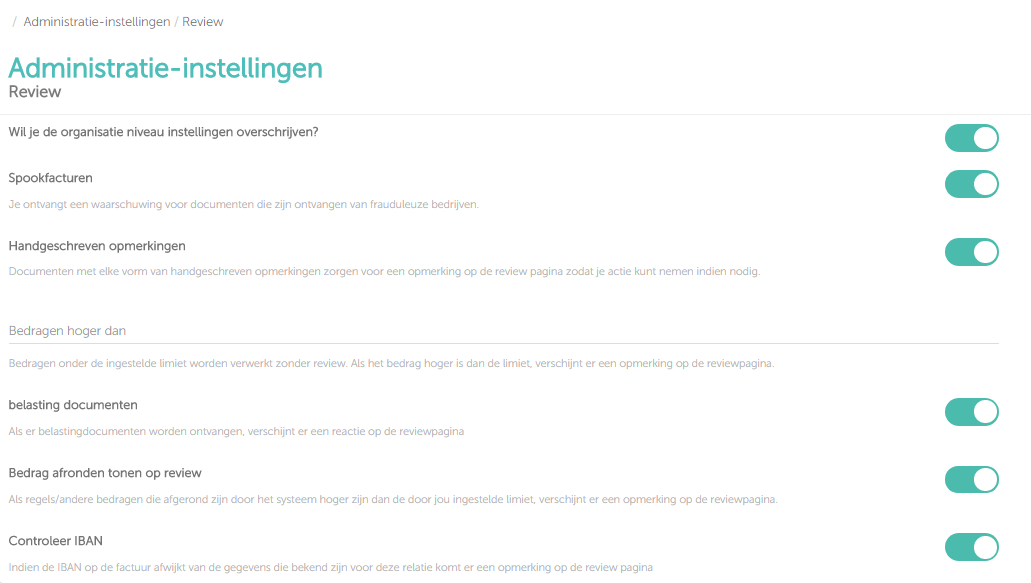
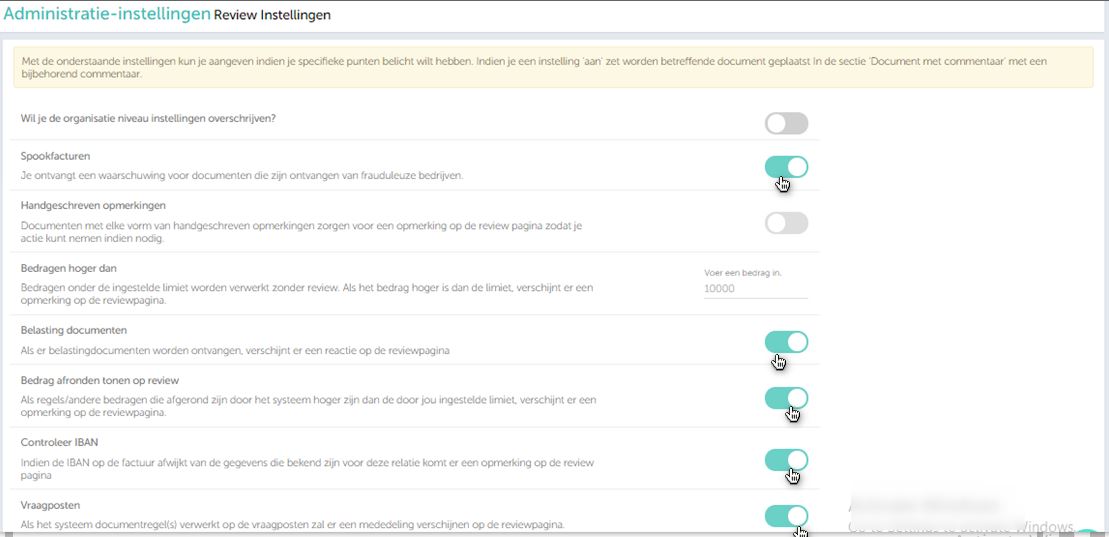
Je kunt via de Administratie-instellingen naar het onderdeel ‘Review’gaan. Zie het scherm hieronder: (Login>>Selecteer administratie>> Review)

2. Welke instellingen kun je vinden in dit onderdeel
-
- Spookfacturen: Spookfacturen zijn afkomstig van frauduleuze bedrijven
- Smartbooqing controleert aan de hand van diverse gegevens van Fraudehelpdesk of er sprake is van een spookfactuur (https://www.fraudehelpdesk.nl/).
- Als de factuurgegevens overeenkomen met die van de fraudehelpdesk wordt de factuur beschouwd als spookfactuur.
- Door dit AAN/UIT te zetten kun je verwerken van spookfacturen beperken. Je ontvangt een waarschuwing voor documenten die zijn ontvangen van frauduleuze bedrijven.
- Spookfacturen: Spookfacturen zijn afkomstig van frauduleuze bedrijven
- Hoe wordt een spookfactuur gedetecteerd?
- Detectie van spookfacturen is gebaseerd op informatie op het document als KvK, IBAN, naam en BTW-nummer.
- Als een van de hierboven genoemde gegevens overeenkomt met gegevens die bekend zijn bij Fraudehelpdesk dan wordt
- Zodra een spookfactuur wordt gedetecteerd, verschijnt er een melding op document hub > > reviewpagina.
- Commentaar: document niet verwerkt; spookfactuur.
- i: als je klikt op (i), kun je bekijken op welke parameter de factuur wordt beschouwd als spookfactuur.

- Handgeschreven opmerkingen: Met deze optie kunnen handgeschreven opemerkingen worden verwerkt zodat het systeem dit soort documenten op de reviewpagina plaatst.
- Bedragen hoger dan: Elk bedrag dat hoger is dan het ingevulde bedrag komt ter review op de reviewpagina.
- Belastingfacturen: Met deze instelling zal elke belastingfactuur voor review komen op de reviewpagina.
- Bedragen afronden: Als regels/andere bedragen die door het systeem zijn afgerond hoger zijn dan de door jou ingestelde limiet zal er een reviewopmerking toegevoegd worden op de reviewpagina.
- Verifieer IBAN: Als de IBAN op het document verschilt van wat reeds bekend is voor deze relatie zal er een opmerking geplaatst worden op de reviewpagina.
3. Documentreview beheersen met de logica van ‘Slimme review’
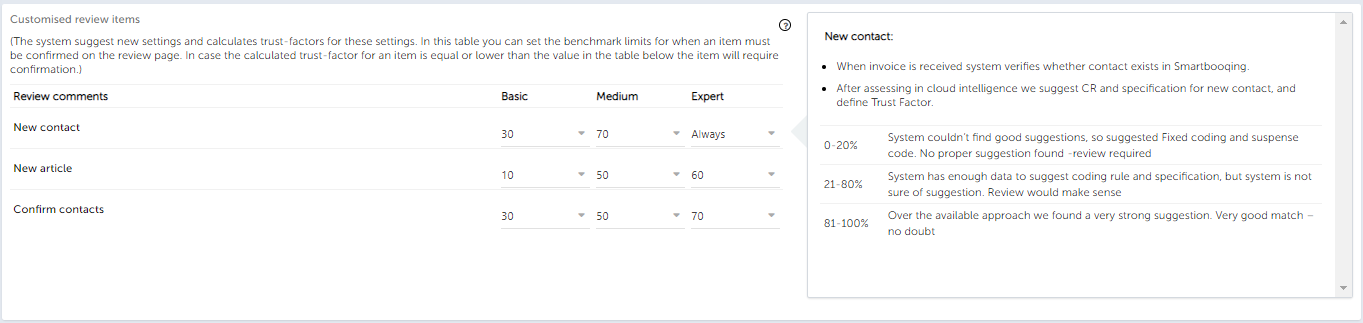
- Standaardinstelling voor reviewen is de ‘expert’ modus. Je kunt de modus wijzigen in de lijst met gebruikers of in je profiel.
- Je kunt de grens van de betrouwbaarheidsfactor instellen voor de items die je wilt reviewen.
- Het systeem berekent de ‘zekerheid’ van relaties door het een ‘betrouwbaarheidsfactor’ te geven.
- Relaties met een lagere betrouwbaarheidsfactor dan wat ingesteld is, komen dan ter review.
4. Notificatie-instellingen voor review
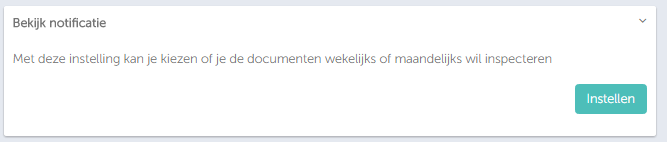
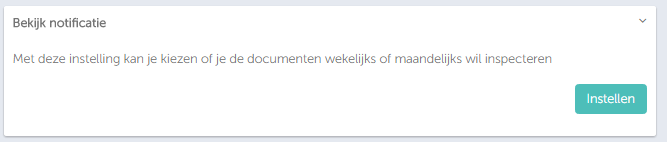
Je kunt de voorkeur instellen voor reviewopmerkingen door op ‘Instellen’ te klikken, zie afbeelding hierboven.
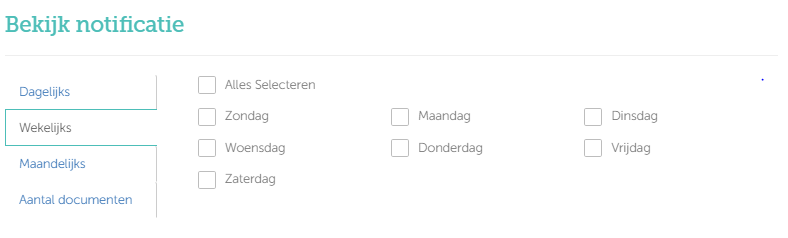
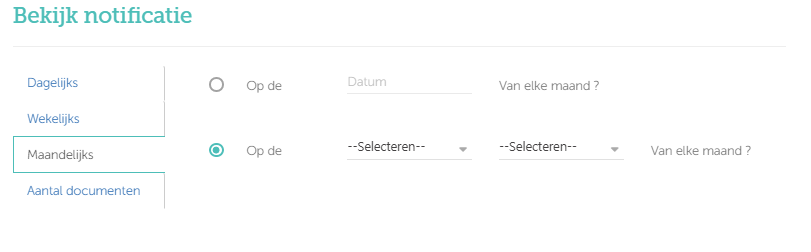
Je kunt kiezen uit de volgende instellingen:
-
-
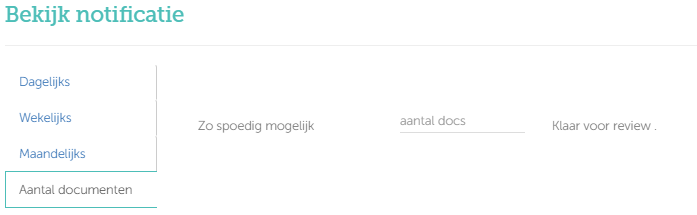
- Dagelijks: Als je voor dagelijks kiest zal er standaard elke 24 uur review notificaties worden gezonden.
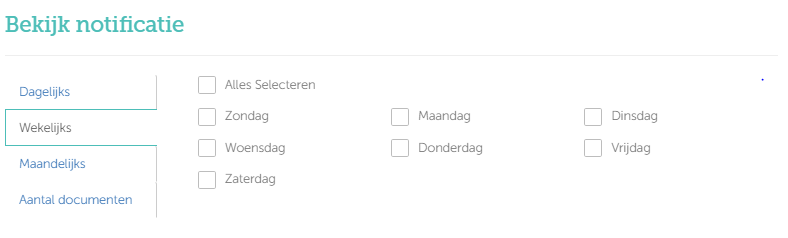
- Wekelijks: Je kunt een voorkeursdag opgeven waarop je de review notificaties wilt ontvangen.
-
-
-
- Maandelijks: Je hebt twee opties waarbij je elke dag van de maand kunt instellen om review notificaties te ontvangen of je kiest de dag met andere voorkeur.
-

-
-
- Aantal documenten: Je kunt het aantal documenten opgeven als target en als dit ingevoerde getal is bereikt worden de review notificaties verzonden.
-