1. Home
  2. Aan de slag
  3. Bestanden uploaden via het portaal
  1. Home
  2. Bestanden verzamelen
  3. Bestanden uploaden via het portaal

Bestanden uploaden via het portaal

Published Date: 12-04-2018    Categorie: Aan de slag Bestanden verzamelen
Updated on januari 2, 2024


In dit artikel vind je informatie over:

Hoe kan je via het portaal documenten uploaden

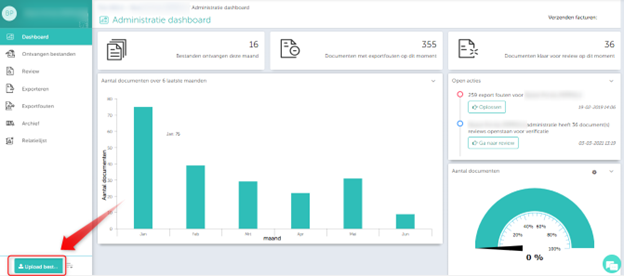
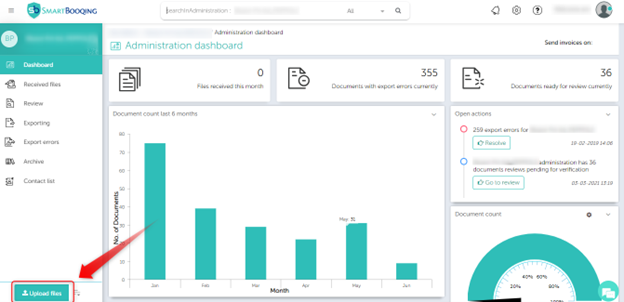
Linksonder in het keuzemenu vind je helemaal onderaan ‘Upload bestanden’. Als je daar op klikt verschijnt er een pop-up waar je door je bestanden kunt bladeren. Kies het bestand en ga verder met de upload.


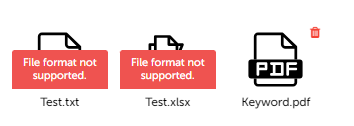
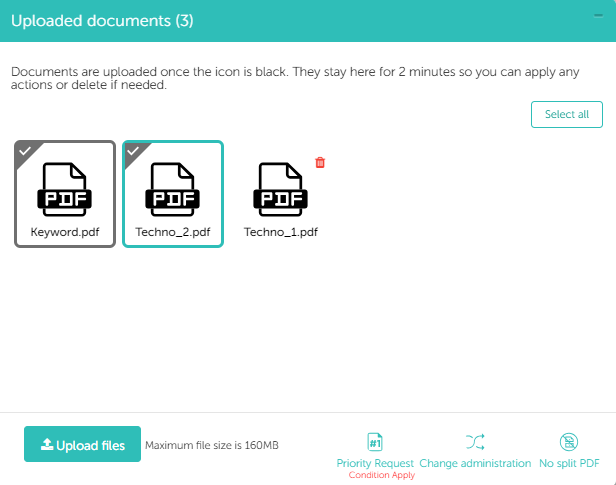
Na het uploaden van één of meerdere bestanden verschijnt er een pop-up waarin de voortgang van de upload wordt weergegeven. Hoe je de status kunt checken wordt hieronder uitgelegd:
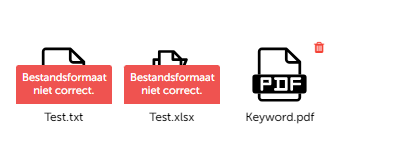


Bij het uploaden van documenten vanuit het portaal heb je de volgende drie opties die je kunt uitvoeren:


  1. PDF niet splitsen.
  2. Administratie van documenten veranderen.
  3. Prioriteit toewijzen.


1. PDF niet splitsen

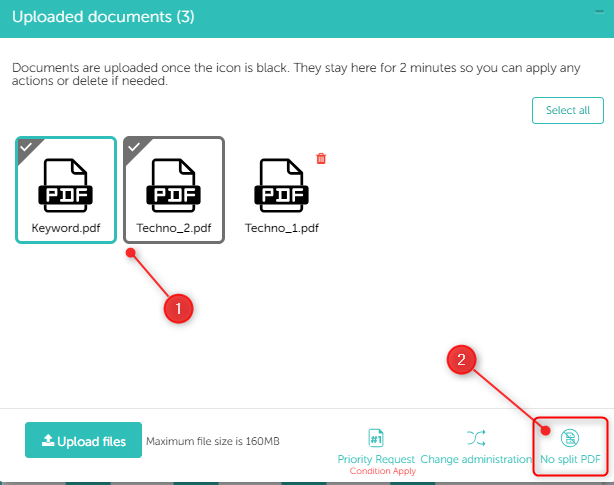
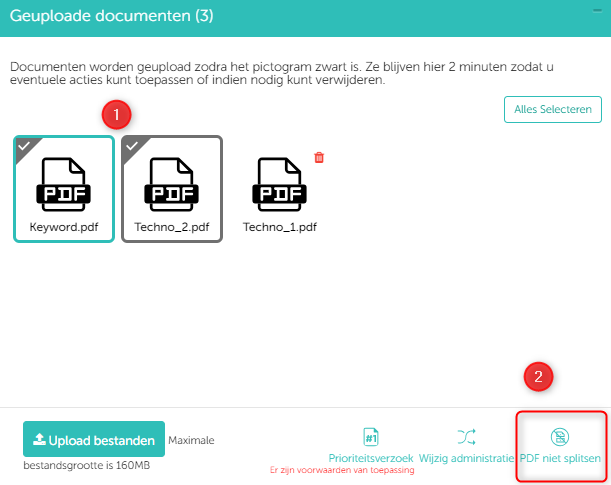
Je kan de instelling ‘No Split PDF’ toe te passen op documenten zodra ze in de uploadwachtrij staan, volg hiervoor de onderstaande stappen:


  1. Upload de documenten.
  2. Selecteer de documenten die je niet gesplitst wilt hebben.
  3. Klik op de knop ‘PDF niet splitsen’.
  4. Het icoon voor ‘PDF niet splitsen’ is zichtbaar als het goed verlopen is.
  5. Er verschijnt een notificatie op hoeveel documenten het succesvol is toegepast.


Opmerking:

  • Werk snel! Als documenten in het verwerkingsproces zitten, kan ‘PDF niet splitsen’ niet meer worden toegepast.
  • Je kan geen document selecteren wanneer de uploadstatus van het betreffende document nog bezig is.


Ongedaan maken van ‘PDF niet splitsen’

  1. Selecteer de document(en) waarop ‘PDF niet splitsen’ is toegepast.
  2. Als er alleen documenten geselecteerd worden waarop ‘PDF niet splitsen’ is toegepast, dan is de knop ‘PDF niet splitsen’ gewijzigd naar ‘ongedaan maken’.
  3. Klik op de knop ‘ongedaan maken’.
  4. Het icoon ‘PDF niet splitsen’ verdwijnt als het ongedaan maken goed is verlopen.


Opmerking:

  • Als je zowel ‘niet splitsen’ documenten als andere documenten selecteert zal de knop ‘ongedaan maken’ niet verschijnen.

2. Geüploade bestanden naar een andere administratie te verplaatsen

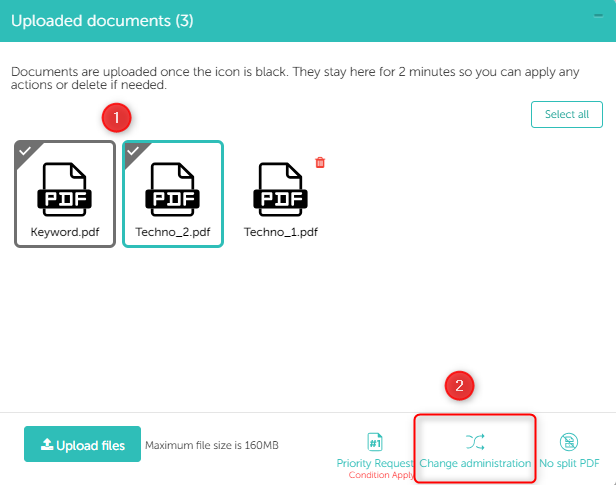
Om de administratie te wijzigen tijdens handmatige upload vanuit het portaal volg je de volgende stappen:


  1. Selecteer de administratie.
  2. Klik op de knop ‘uploaden’.
  3. Selecteer de documenten die u wilt uploaden en klik op de knop ‘Ok’ .
  4. U kunt op de knop ‘Wijzig administratie’ klikken om deze documenten te verplaatsen naar een andere administratie.
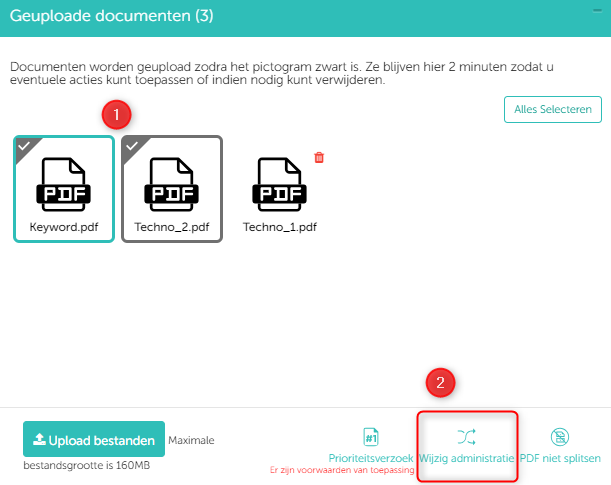
 

Klik hier voor meer informatie over administratie wijzigen tijdens het handmatig uploaden vanaf het portaal.

3. Prioriteit aanvraag verwerken

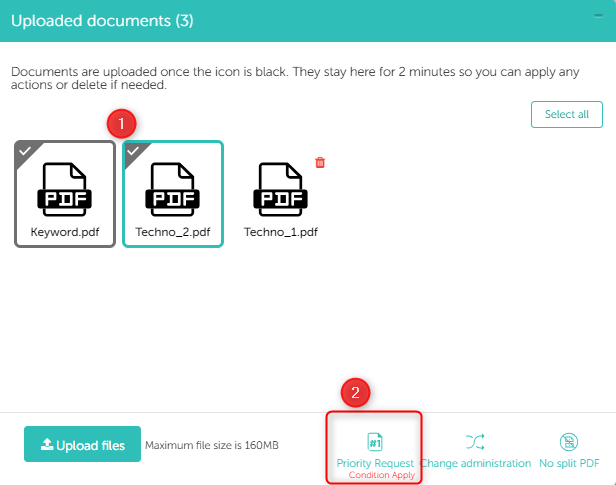
Om documenten te markeren voor prioriteit verwerking, volg de onderstaande stappen:


  1. Documenten uploaden.
  2. Document selecteren dat u wilt verzenden voor prioriteitsverwerking.
  3. Klik op ‘prioriteitsverzoek’ om het verzoek in te dienen.
  4. Je ontvangt een bevestiging van het supportteam via e-mail.


De upload wachtrij controleren

Bij het uploaden van de bestanden verschijnt er een pop-up waarin alle geüploade bestanden getoond worden samen met de bestanden die in de wachtrij staan. Het pop-up venster ziet eruit als hieronder, welke je kunt minimaliseren of sluiten.


Opmerking:

  • Met onze nieuwste release wachten geüploade bestanden voortaan 2 minuten, zodat gebruikers elke gewenste actie kunnen ondernemen, d.w.z. prioriteitsverzoek, no-split-instelling, administratie wijzigen of de bestanden verwijderen.


Als je in dit stadium meer bestanden wilt uploaden kun je ze simpel verslepen naar dit venster.


Let op:

  • De maximale ondersteunde grootte is 160 MB.

Controleren van de status van de geüploade bestanden in de Document Hub

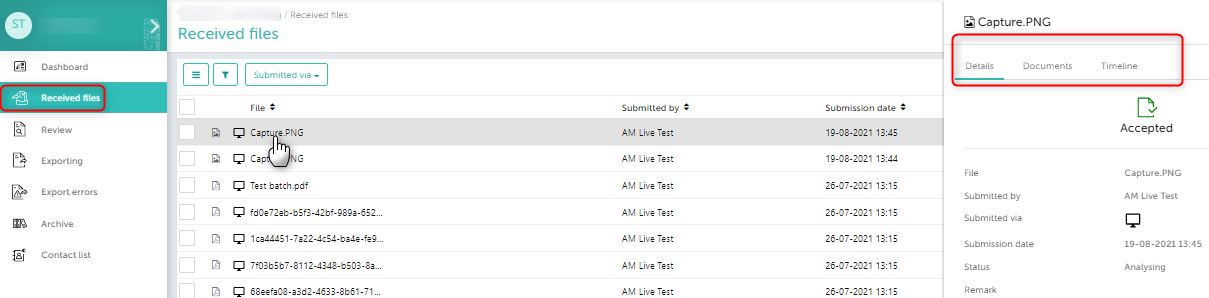
Wanneer de bestanden zijn geüpload kun je de status controleren in het tabblad ‘Ontvangen bestanden’ (Inloggen → Selecteer Administratie → Ontvangen bestanden).


In ‘Ontvangen bestanden’ kun je de kolommen zichtbaar maken naar jouw voorkeur door gebruik te maken van de filters. Zie de afbeelding hieronder en de rode kaders die de knoppen omlijnen.


In de kolom ‘Status’ kun je de status van het geüploade bestand bekijken.


Opmerking:

  • Als je per ongeluk een document hebt geüpload, kun je het niet verwijderen vanaf de reviewpagina. Voor verwijdering, neem contact op met support@smartbooqing.com.


Hoe zie ik meer gegevens van mijn document dat is geüpload naar Smartbooqing

Zoals je in onderstaande afbeelding ziet, kun je het PDF icoontje dat links voor de regel staat aanklikken. Daarna klapt er een venster uit aan de rechterkant van je scherm. Als je in dat venster klikt op ‘Details’ zal je de status van het bestand zien.
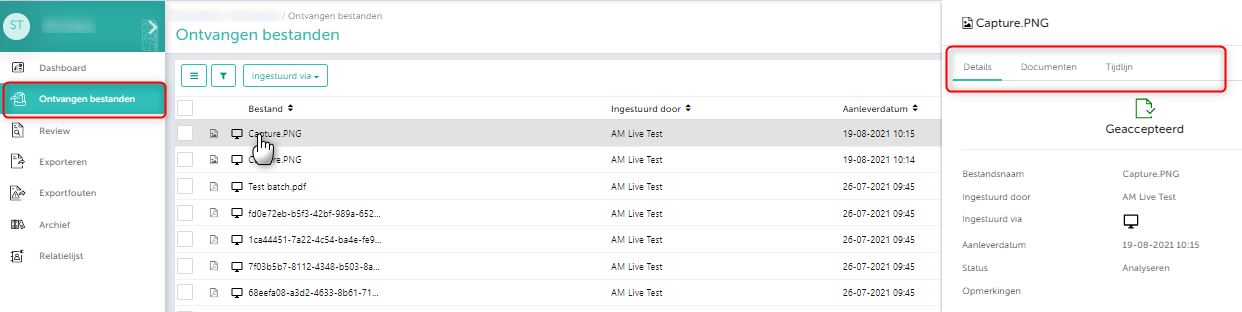


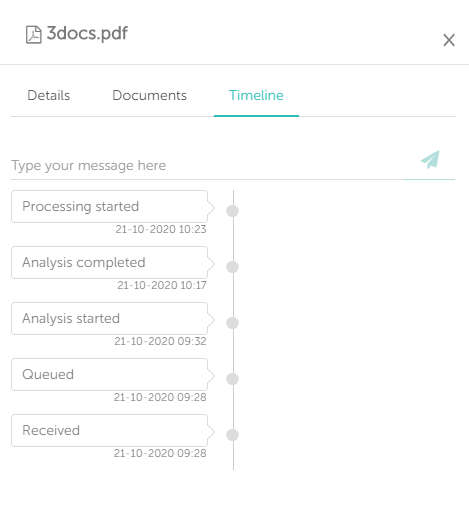
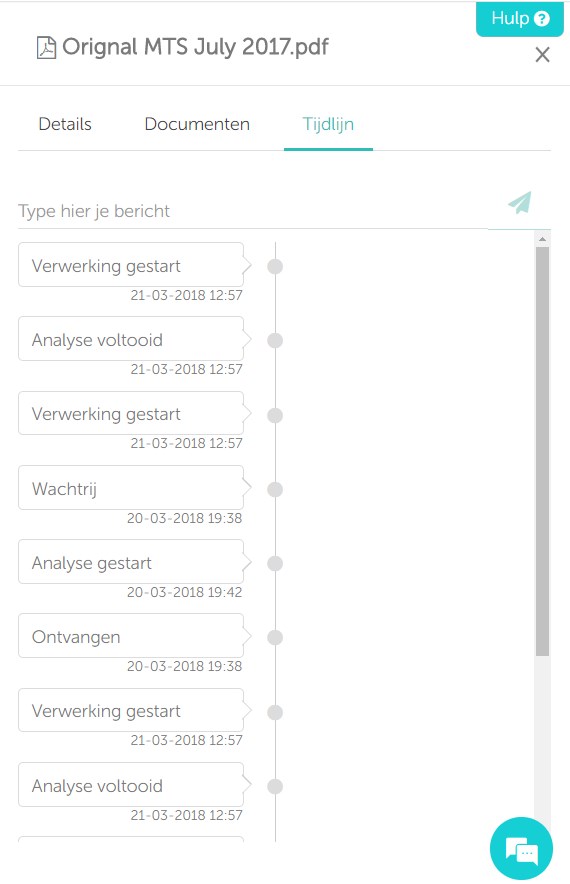
In hetzelfde venster vind je naast ‘Details’ ook twee andere tabbladen:


  • Documenten: Dit tabblad toont in het kort details voor alle documenten ontvangen in een bepaald bestand. Deze details bevatten onder andere het type factuur, de status van de factuur, factuurnummer, factuurdatum, bedrag, enz.


  • Tijdlijn: Je kunt de tijdlijn van het document inzien. Hier vind je updates over de verwerking van het document.


Updated on januari 2, 2024

Was this article helpful?

Related Articles

Uploading files via web portal

Published Date: 13-03-2018    Categorie: Aan de slag Bestanden verzamelen
Updated on januari 2, 2024


In this article you will find information about:

How to upload files via the portal

On the left-hand side of the options panel, you will find the “Upload Files” option button. A simple click on it will prompt a pop-up to browse the file. Choose the file and proceed with the upload.


After uploading a single or multiple files, a pop-up will appear, displaying the ongoing upload progress. The upload status will be visible to you, explained as follows:


While uploading documents from the portal, you have the following three options, which you can use based on your requirements:


  1. Do not split PDF: the document will not get split while processing.
  2. Change Administration of documents.
  3. Assign for priority processing.

1. Apply no split pdf setting

To apply the “No Split PDF” setting to documents once they are in the upload queue, follow the steps below:


    1. Upload documents.
    2. Select the documents on which you wish to apply “no split PDF” settings.
    3. Click on “No split PDF” button.
    4. The “No split PDF” icon is displayed, if settings is been applied successfully.
    5. You will receive a notification indicating how many documents the “No Split PDF” setting has been successfully applied to.


Note:

  • Be quick in applying “No split PDF” as they cannot be applied on document(s) once they are picked for processing.
  • Additionally, you cannot select a document when the respective document’s upload status is in progress.

Undo applied ‘no split PDF settings

  1. Select the document(s) on which “no split settings” is applied.
  2. If you only select documents on which the “No Split PDF Settings” is applied, then the “No Split PDF” button is changed to the “Undo” button.
  3. Click on the “Undo” button.
  4. The “no split PDF” icon will disappear after the setting is successfully undone.


Note:

  • If you select documents on which the “No Split PDF” settings are applied, as well as other documents on which the setting is not applied, the “Undo” button will not appear.

2. Move files from one Administration to another

To change the administration during manual upload from the portal:


  1. Select the administration.
  2. Click on the “Upload” button.
  3. Select documents you wish to upload and click on the “Ok” button.
  4. You can now click on the “Change administration” button to move these documents to another administration.


Click here to learn more about change administration.


3. Priority Processing

To mark documents for priority processing, follow the steps below:


  1. Upload documents.
  2. Select document you want to send for priority processing.
  3. Once you click on the Priority Request button, the request will be submitted.
  4. The support team will confirm the priority processing requests via email.


Checking the upload queue

After uploading the files, you will receive a pop-up window that displays all the uploaded files and the files in the queue. The pop-up window will appear as shown below, which you can minimize or close. At this stage, if you want to upload more files, you can simply drag and drop files onto this pop-up window.


Note: As per our latest release, uploaded files will now wait for 2 minutes, allowing users to take any desired actions such as priority request, no-split setting, change admin, or delete the files.


Click on the “Upload files” button to upload additional files.


Note: The maximum supported size is 160 MB.

Checking the status of the uploaded files in the document hub

Once the files are uploaded, you can check the status in the “Received Files” tab (Login → Select Admin → Received Files).


In the Received Files section, you can customize the visibility of columns according to your preference. Utilize the buttons outlined with red lines in the screen below to apply column filters.


From the above image, you can check the status of the uploaded file in the “Status” column.


Note: If you have mistakenly uploaded a document, you cannot delete it from the review page. For deletion, please contact support@smartbooqing.com.


Checking the document details and timeline view

Here we will show you can get more details about your documents which are uploaded to Smartbooqing.


From the image below, you can locate the PDF icon on the far left-hand side. Upon clicking the icon, a small pop-up window will appear on the right-hand side of the screen. If you click on “Details” within the pop-up, you will be able to see the status of that file.


In the same pop-up window, you will find two more tabs as shown below:


  •  Documents: This tab will display brief details for all the documents received in one particular file. Covered details include the type of invoice, status of the invoice, invoice number, invoice date, amount, etc.


  • Timeline: In this section, you will find timely updates for the uploaded file. It provides details on how the invoice was processed.


Updated on januari 2, 2024

Was this article helpful?

Related Articles