1. Home
  2. Beheren verbindingen
  3. Beheren Snelstart verbinding

Beheren Snelstart verbinding

Published Date: 01-08-2018    Categorie: Beheren verbindingen
Updated on april 2, 2021


In dit artikel vind je informatie over:

  1. Voorwaarden
  2. Nieuwe verbindingen instellen
  3. Importeren vanuit een bestaande verbinding


1. Voorwaarden:

Wat heb je nodig om te starten?

Voor het gebruik van Snelstart heb je de inloggegevens nodig. (Gebruikersnaam en wachtwoord).


2. Nieuwe verbindingen instellen

Stap 1:


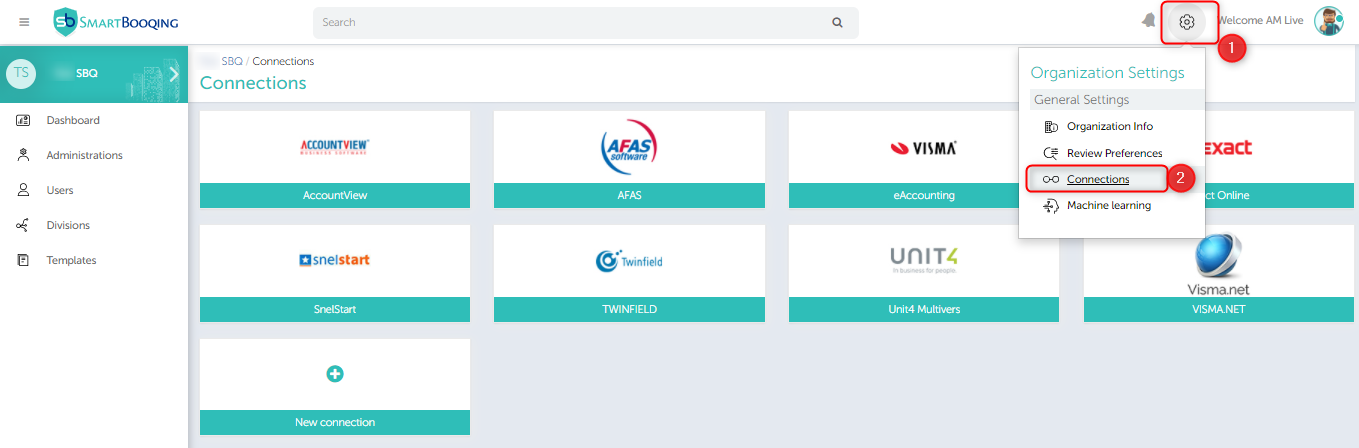
Ga naar organisatie > selecteer verbinding > klik op SnelStart.


Stap 2:


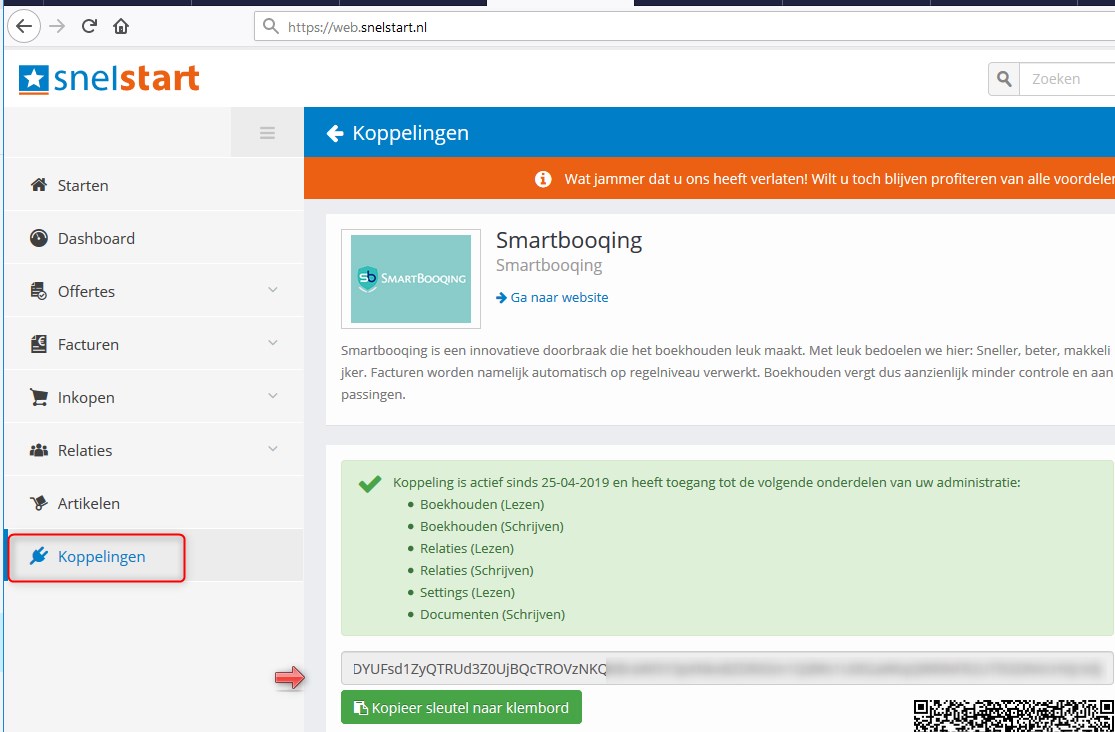
Je komt terecht op de onderstaande pagina. Op deze pagina moet je een link invoeren om verbinding te maken met Snelstart.


Stap 3:


Om dit te doen, moet je de onderstaande stappen volgen om een ​​verbinding of administraties toe te voegen.


Hier kunt u de administratie één voor één importeren.


  • Klik op ‘Koppelingen’ en zoek Smartbooqing.
  • Klik op ‘Genereer nieuwe sleutel’


  • Klik op ‘Doorgaan’


  • Kopieer de sleutel


  • Ga terug naar Smartbooqing en plak de gekopieerde sleutel in het veld ‘Sleutel voor administratie koppeling’ en klik op ‘Koppelen’


Stap 4:

  • Hier is slechts één administratie beschikbaar, selecteer de administratie door op het selectievakje te klikken en klik op Importeren.


Stap 5:


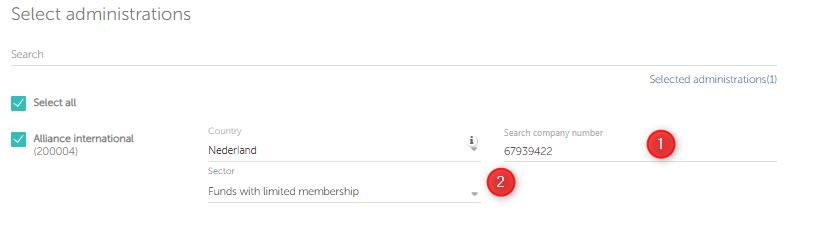
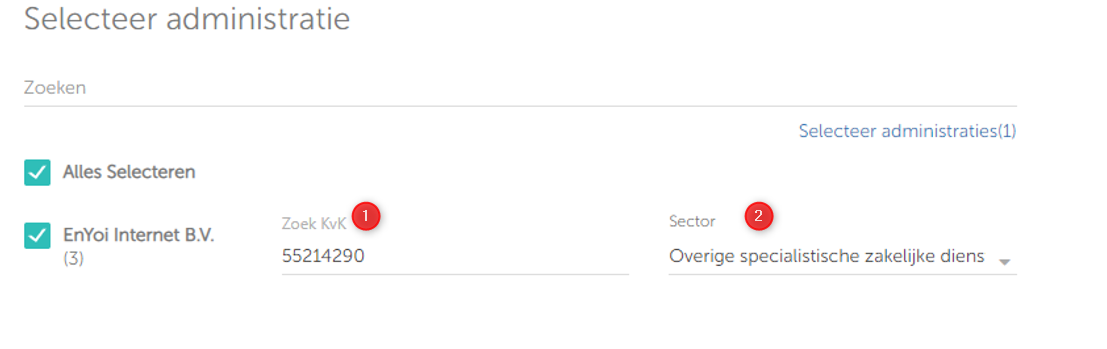
  • Klik op volgende, en je ziet het onderstaand scherm waarin je wordt gevraagd het KvK-nummer en/of sector op te geven.
  • Is er geen KvK-nummer bekend, geef dan een reden op. (Selecteer uit ‘Geen bedrijf of test/demo’) en selecteer de sector.


Stap 6:


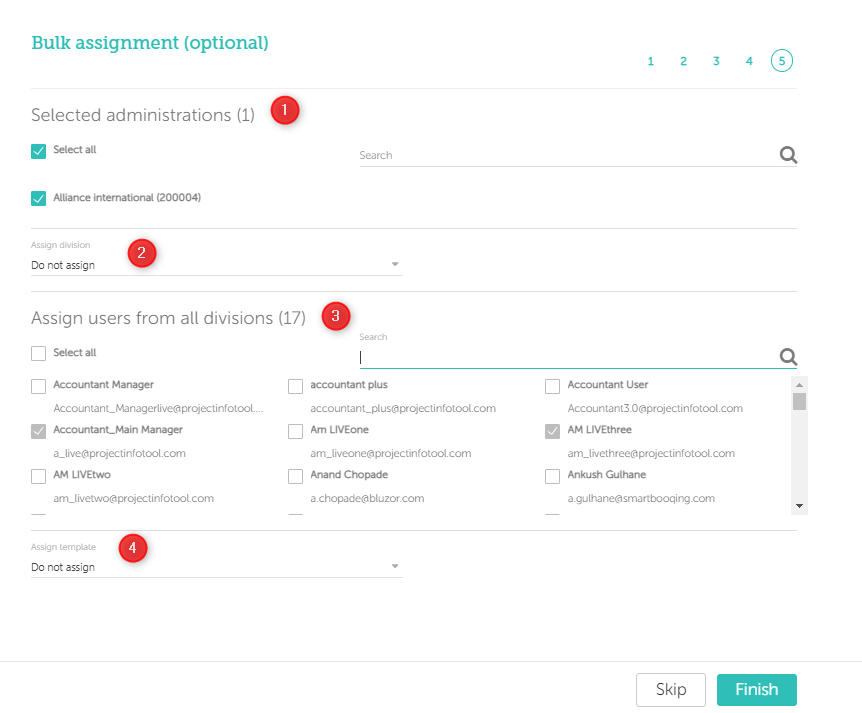
  • Met een bulkopdracht kun je de administraties toewijzen aan gebruikers, templates of divisies. Zie daarvoor het onderstaande scherm.
  • De stappen:
    1. Selecteer administraties (Standaard zijn ze allemaal geselecteerd)
    2. Wijs divisie toe
    3. Toewijzen van gebruikers
      • Standaard worden alle nieuw toegevoegde administraties toegewezen aan alle ‘beheerders’.
    4. Toewijzen van template
      • Dit is niet verplicht en mag je overslaan.


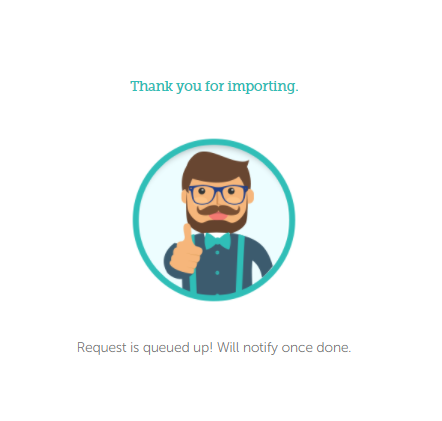
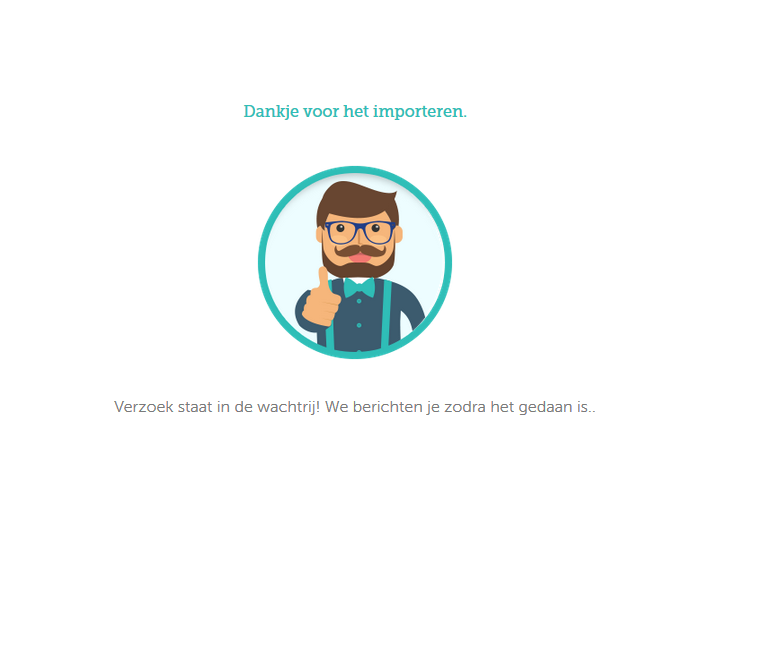
  • Als je klaar bent verschijnt het onderstaande scherm.


Nadat de administratie is geïmporteerd, kan je de status van de geïmporteerde administratie in het menu Administraties controleren. Zie hieronder:
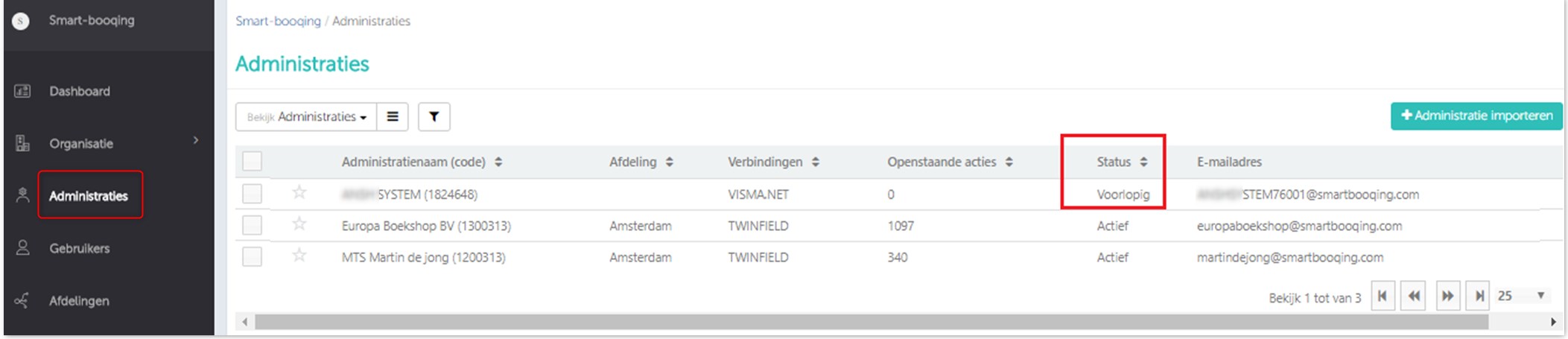


Wacht enkele minuten. De status van de administratie verandert van configureren naar actief.


3. Importeren vanuit een bestaande verbinding:

  1. Ga naar ‘administraties’ en klik op ‘+ administratie importeren’.
  2. Je ziet de lijst met verbindingen. Selecteer Snelstart en volg stappen 3 tot 8.


Updated on april 2, 2021

Was this article helpful?

Related Articles

Snelstart

Published Date: 17-07-2018    Categorie: Beheren verbindingen
Updated on april 2, 2021


In this article you will find information about:

  1. Prerequisites
  2. Setting up new connections
  3. Importing from existing connection

1. Prerequisites:

What you need to have?


  • One must have Snelstart credentials / username / password handy.


2. Setting up new connections

Step 1:


In ‘Organization’=> select ‘connection’=> click on ‘new connection’.


Step 2:


Select Snelstart from the new connections


Step 3:


You will land on below page, where you need to enter link for connecting to Snelstart.


Step 4:

To do so, you need follow below steps to add connection or administrations.


Note: Here you can import administration one at a time.


  • Click on ‘Koppelingen’, look for Smartbooqing
  • Click on ‘Genereer nieuwe sleutel’


  • Click on Doorgaan


  • Copy the Key.


  • Go back to Smartbooqing and paste the key into the field ‘Key for administration link’ in Smartbooqing and click on connect.


Step 5:


Here only one administration will be available, select the administration by clicking on the checkbox and click on ‘Import’.


Step 6:


  • On click of next you will be able to see the below screen and you are required to enter the COC number or sector.
  • If you don’t have the COC then you are required to give the reason for not having the COC (you can select ‘Not a company or test/Demo) and select Sector.


Step 7:


  • Next screen is bulk assignment where you can assign your administrations to Users, Templates, or Divisions.
  • Steps:
    • Select administrations (By default all are selected)
    • Assign Division
    • Assign users:
  • By default, all the newly added administrations are assigned to all ‘Administrators’.
    • Assign template
  • This step is not mandatory, can be skipped.


  • Once done; you will be notified with below image.

Once the administration is imported you can check the status of the imported administration on Administrations menu. Wait for few minutes the status of the administration will change from ‘configuring’ to ‘active’.


3. Importing from existing connection

  1. Go to ‘Administrations’ and Click on ‘+ Administration import’.
  2. You see all connections list. Select ‘Snelstart’ and follow steps 3 to 8.


Updated on april 2, 2021

Was this article helpful?

Related Articles