Outbox

Published Date: 13-06-2023    Categorie: SmartPeppol
Updated on september 24, 2026


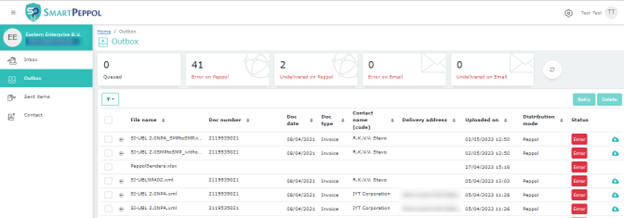
In de Outbox kunt u de status van de uitgaande PEPPOL documenten bekijken.


De tabel geeft informatie zoals:


Kolomnaam Omschrijving
Bestandsnaam Naam van het bestand
Documentnummer Het documentnummer
Documentdatum Documentdatum (datum op het document)
Documenttype Het type document
Relatienaam Leverancier/client van het document
Bezorgadres PEPPOL/e-mail ID van de ontvangende partij
Geüpload op Datum van uploaden
Distributiewijze PEPPOL of e-mail
Status van de documenten Status van de documenten bij het exporteren


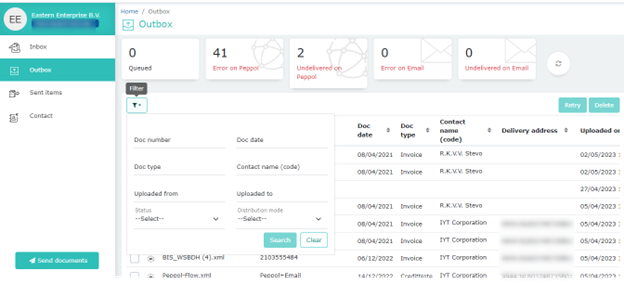
Bovenaan de pagina wordt de status weergegeven met de termen ‘Wachtrij’, ‘Fout op Peppol’, ‘Niet afgeleverd op Peppol’, ‘Fout op e-mail’ en ‘Niet afgeleverd op e-mail’.


De knop ‘Vernieuwen’ zal deze statussen opnieuw kalibreren als ze zijn gewijzigd.


Filter

In de Outbox kunt u filteren om een bepaald document te vinden.


Het filteren kan op documentnummer, documentdatum, documenttype, relatienaam, geüpload van, geüpload tot en de status.


Download

U kunt documenten downloaden door op het icoon te klikken dat rechts naast het document staat.

Opnieuw proberen

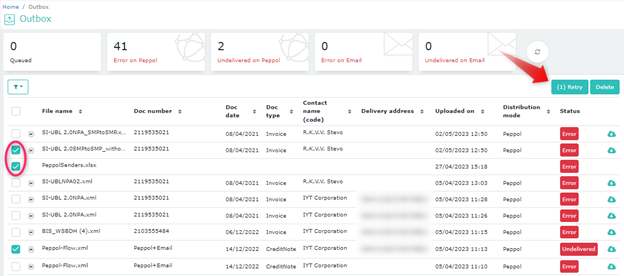
Met de ‘Opnieuw proberen’ knop kunt u proberen om de UBL’s die de status ‘Niet afgeleverd’ hebben opnieuw te verzenden.


  • Als het om een enkel document gaat, kunt u klikken op het icoon dat rechts naast het document staat.
  • Als u meerdere documenten opnieuw wilt verzenden, selecteert u de gewenste documenten en klikt u vervolgens op de ‘Opnieuw proberen’ knop, zoals hieronder.


Opmerking: De actie ‘Opnieuw proberen’ is alleen beschikbaar voor documenten met de status Niet afgeleverd. Deze actie kan niet worden gebruikt voor documenten met de status ‘Fout’ of voor gevallen waarin de validatie is mislukt.
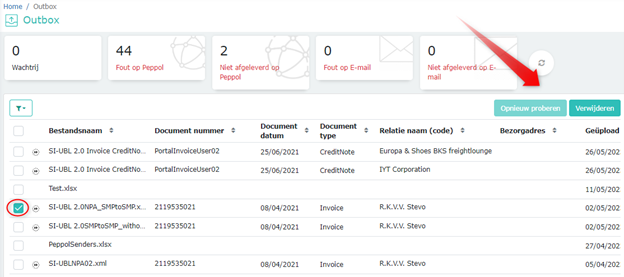


Verwijderen

U kunt een enkel of meerdere documenten tegelijk verwijderen door te klikken op ‘Verwijderen’.


Sorteren en naar de volgende pagina

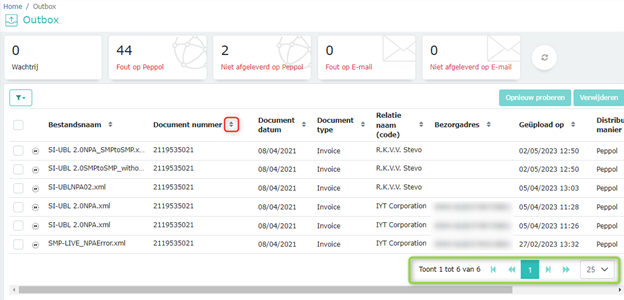
U kunt de kolommen sorteren door op de kolomkop te klikken. Het pijltje geeft de sorteerrichting van oplopend of aflopend aan.


Als de tabel uit meerdere pagina’s bestaat kunt u rechtsonderaan naar de volgende pagina navigeren.


Updated on september 24, 2026

Was this article helpful?

Related Articles

Outbox

Published Date: 15-05-2023    Categorie: SmartPeppol
Updated on september 24, 2026


The Outbox view lets our users view the statuses of outbound PEPPOL documents.


The table shows columns like:


Column name Description
File name The name of the file
Document number The document number
Document date The date of the document (mentioned on the invoice)
Document type The type of document
Contact name The supplier/client of the document
Delivery address PEPPOL/Email ID of the receiving party
Uploaded on Date when the document was uploaded
Distribution mode PEPPOL or Email
Status of the documents The status of the document when exporting


The Outbox view shows information about the outbound PEPPOL documents for the organization. Right at the top, it displays the status in terms of “Queued”, “Error on PEPPOL”, “Undelivered in PEPPOL”, “Error on Email” and “Undelivered on Email”.


The Refresh button will recalibrate these statuses if they have changed.


Filter:

The Outbox view has a filter to help our users to find a particular document.


The filter can be set on document number, document date, document type, upload from and upload to, contact name and status.


Download:

Users can also choose to download certain documents by clicking the download icon right beside the documents.

Retry Sending

The page also supports a “Retry” functionality wherein the users can retry to send UBLs which have the “Undelivered” status.


  • If it is a single document the user can click on the retry icon beside the file (extreme right).
  • If the user wants to try to resend more than one document, they can select the documents and click the “Retry” button as shown below.

Note: The Retry action is only available for documents with an Undelivered status. It cannot be used for documents with an Error status or for validation failures. 


Delete

Similarly, the users can also delete single or multiple documents by selecting them and clicking on the “Delete” button.


Sorting & paging

You can sort the columns by clicking on the column header. The arrow indicates the sort direction as ascending or descending.


If the table has multiple pages, then you can use the arrows to navigate through the pages on the bottom right.


Updated on september 24, 2026

Was this article helpful?

Related Articles