For registering in Smartbooqing, you need to follow steps; Click on the below link.
https://desk.zoho.com/portal/smartbooqingcom/kb/articles/beginnen-met-smartbooqing.
1.Internet explorer 10 (IE 10) and above
2.Chrome
3.Mozilla Firefox.
Smartbooqing is an online Software as a Service platform.
You can use it on Android or IOS.
- Resolution or DPI: 300 dpi for docs having normal size text
- 400-600 dpi if the text size on doc is less than normal (normal text size is generally in the range of 10-11 points)
- Orientation: scan as straight as possible
- Scanning mode: Gray-scale
- Brightness settings that are too high or too low may adversely affect OCR accuracy. A medium brightness value of 50% will be suitable in most cases.
- Always scan with white background (specially while scanning less than A4 kind of docs) (These scans have red/pink background)
- Do not scan multiple docs in one page (for example do not scan two different bills side by side), as well as do not put any other doc in background while scanning.
- Pages of multi-page invoice should always be scanned in serial order
- Tick-marks: Good to avoid and if not avoidable then it should not touch the text of the table item and preferably at left empty space of table.
1. Password
2. PIN
1.1. If you have forgotten the password of the app:
You need to change the password from the web portal.
2.1. If you have forgotten the Pin:
You have to click on Pin Vergeten from the app:
You can enter the user name and the password
App will again ask you to enter new PIN
Going forward you login, you can use the new PIN you have entered.
Note: If this does not work, contact Us via e-mail to support@smartbooqing.com or by phone on 31-85-0653090
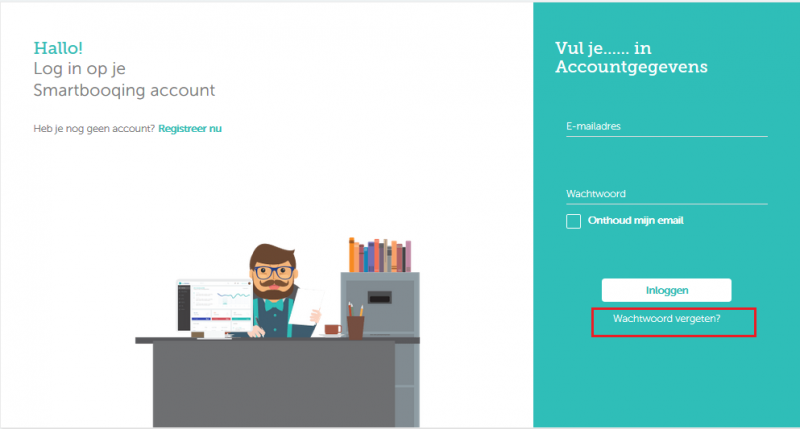
- Click on the link of ‘Wachtwoord vergeten?’ on Login page.
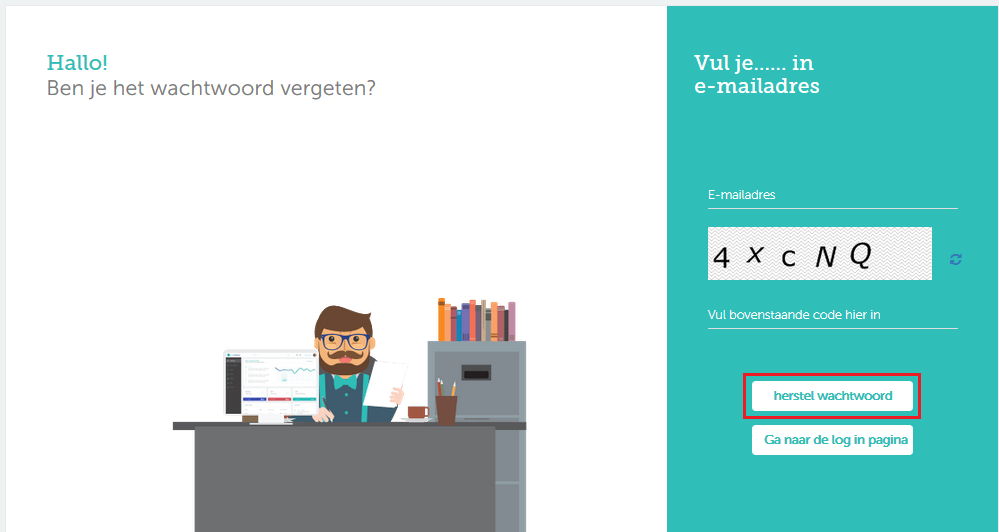
- Enter your email, and click on Herstel wachtword.
- You will receive mail with link; click on the link and it will redirect you to reset password page.
- Mail id will be prefilled and you need to enter new password.
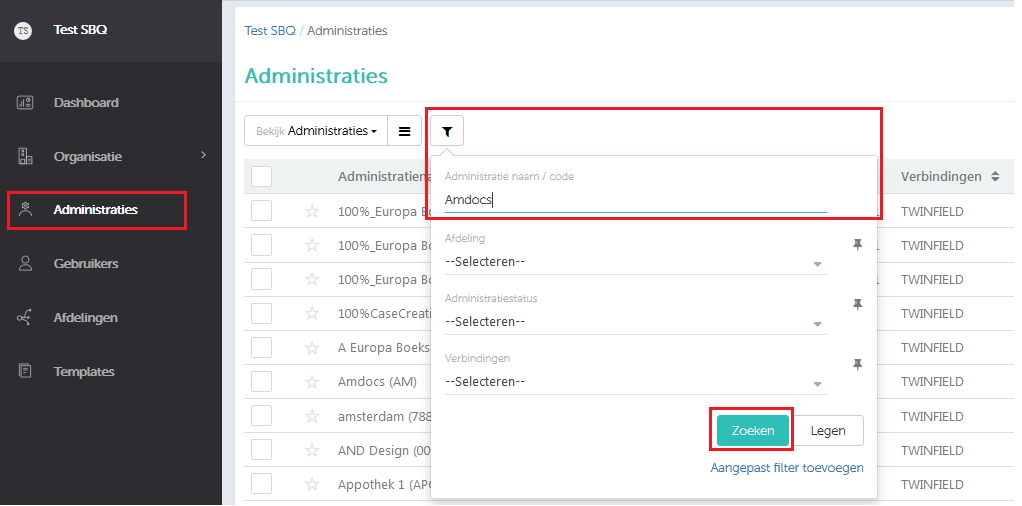
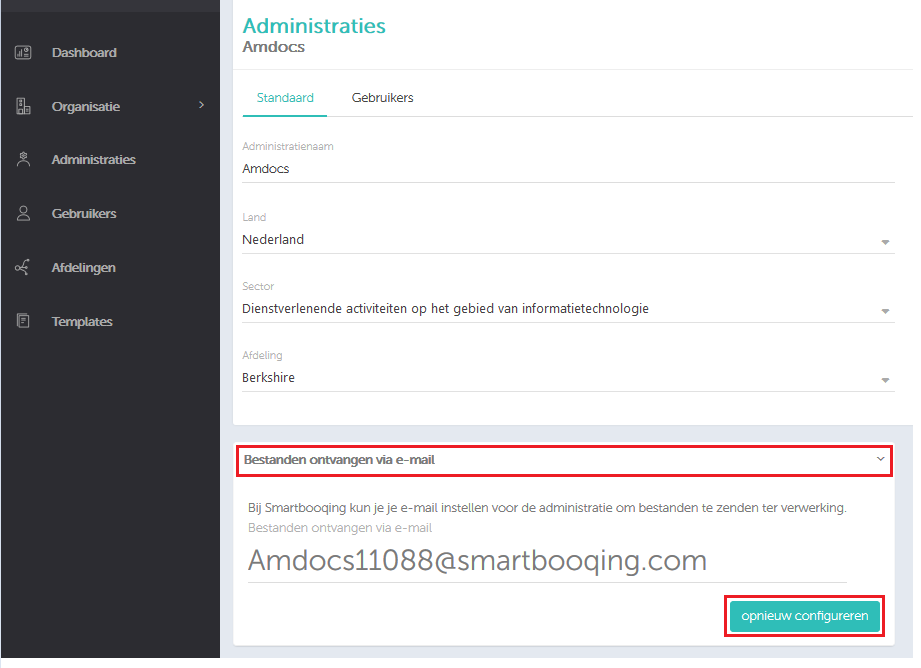
- Go to Administrations Search for the administration you want to find email id.
- Click on administration name you land on Edit mode Standard view Receive files on e-mail.
- To edit it click on ‘Configure’ button.
- Once mail id is set then you can change it after period of 90 days. In case you need help you can contact us at support@smartbooqing.com.
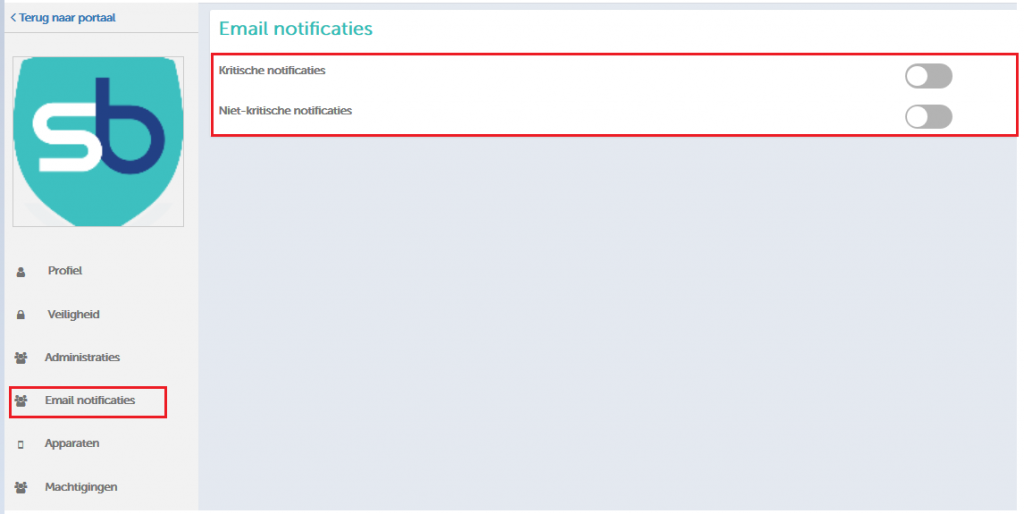
- Go to User profile Email notification; you see two settings ritische notificaties
and Niet-kritische notificaties. You can switch On/Off; the notifications you wish too.
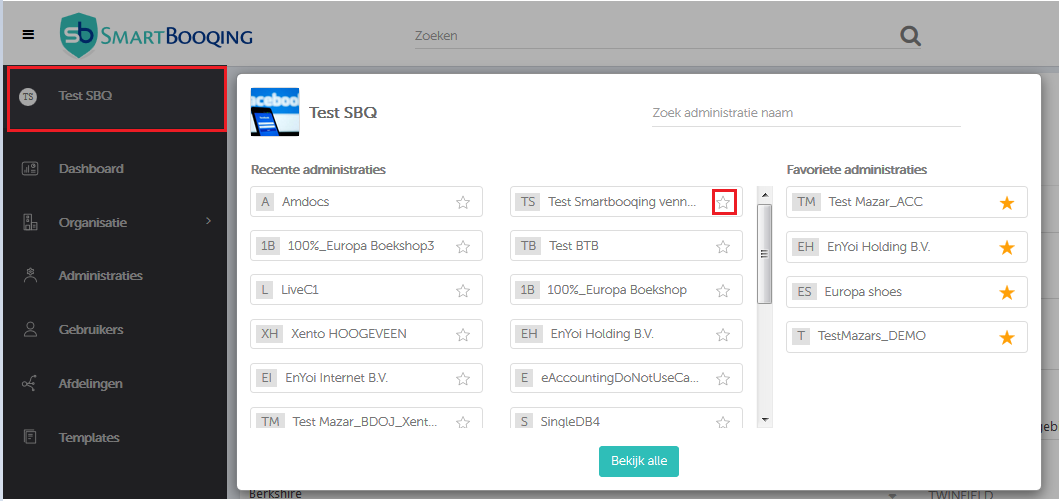
- You can add an administration as Favorite Admin: The email notifications setting, gets applied only the favorite admin (Critical and Non-Critical).
- If you wish to receive notifications for few selected administrations, you can add them as favorite.
- Go to Administratie Click on ‘+Import administration’.
- Select the Accounting System you want to import administrations.
- If connection exists, then select ‘Existing connection’ else select ‘New connection’.
- Enter credentials for accounting system or select existing details and click on connect button.
- You see list of administration(s)
- Select the administration(s), you want to import.
- As the next step, you need to provide CoC number. Smartbooqing needs this number for better processing. Click on import button.
- You can upload it from the portal (on extreme Left corner you will find the option to Upload files) Just select the file from your computer and it will get uploaded. You can verify the uploaded files from the Received files in the Document Hub Section.
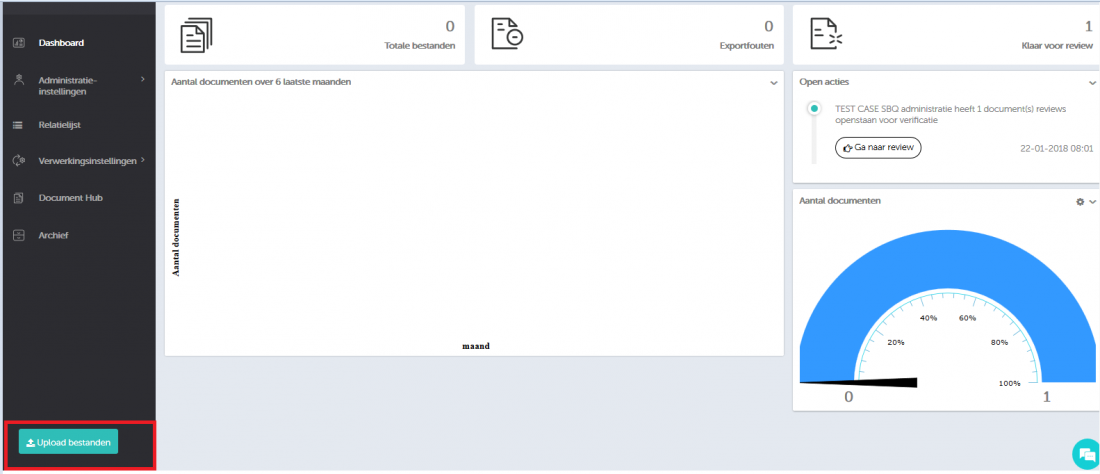
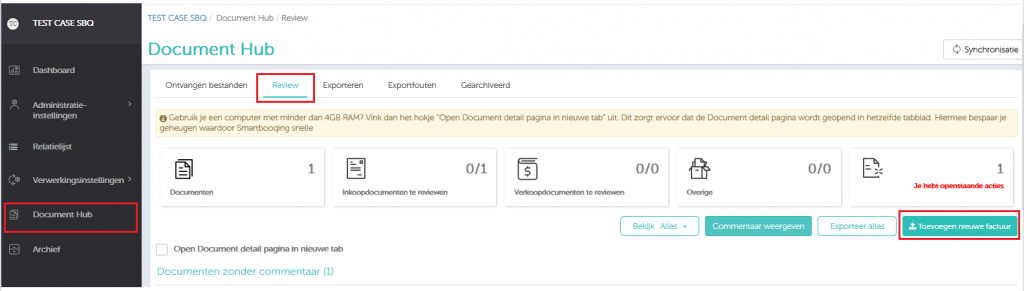
- You can upload the invoices from the Review Tab from the Document Hub page.
- Send the invoices at the scan id for the administrative.
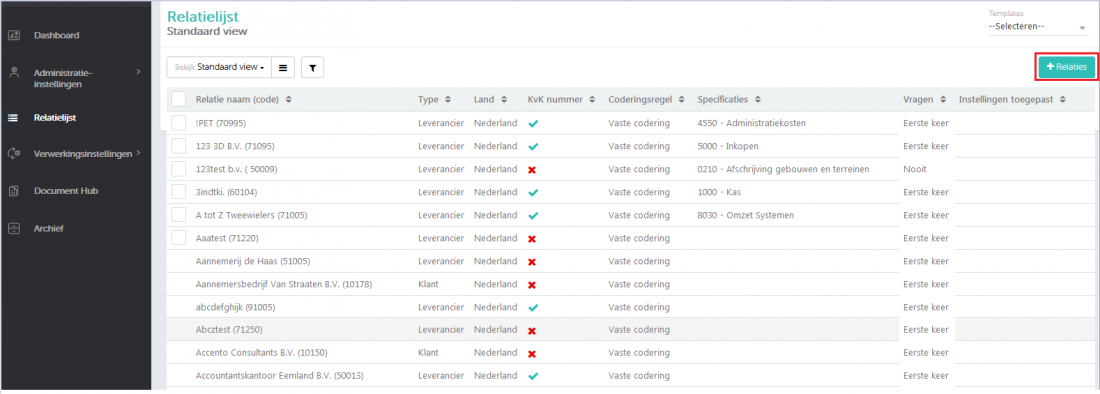
- Select the Administartie Go to Relaties list–>standard view; Click on ‘+Relaties’ button you see pop up.
- To create relatie you can search by CoC number/ Name or if you do not have CoC number then select reason and provide Sector/ Sub Sector manually or
- You can make a copy from existing contact.
- Change of relatie can also be done from Document detail page.
- You can upload the documents/files in bulk for an Administration.
- You can also send it individual for an Administration
- Note: In one file/pdf you cannot share invoices for different administration.
- Click on Organization name and switch to the Administratie for which you want to set the payment term.
- Go to Administration settings Standard
- Click on show advanced settings link.
- Go to the tile ‘Should Smartbooqing process your incoming/Outgoing documents?’ And click on Configure
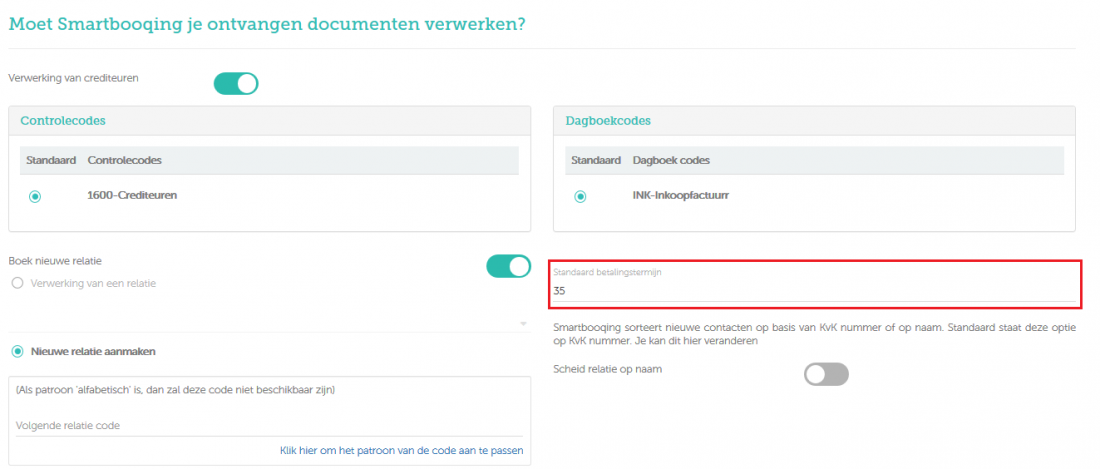
- On Right hand side you see option of set default payment term
Note: Update the payment term in your Accounting System and then sync.
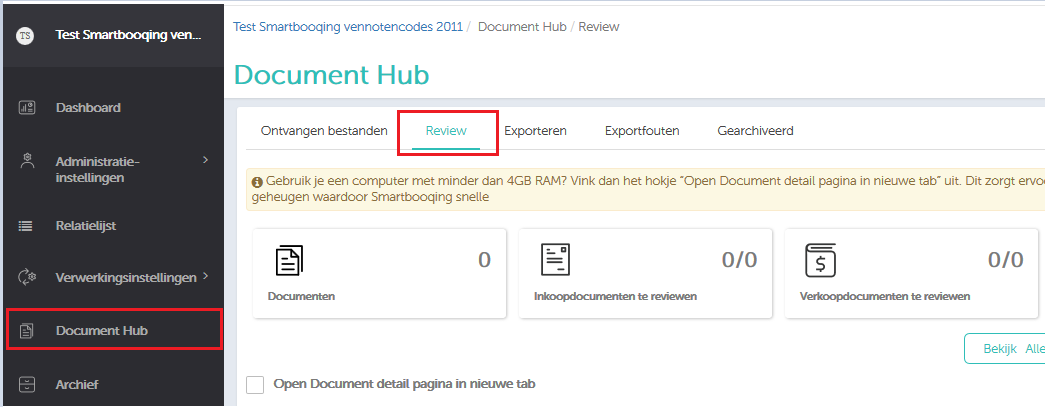
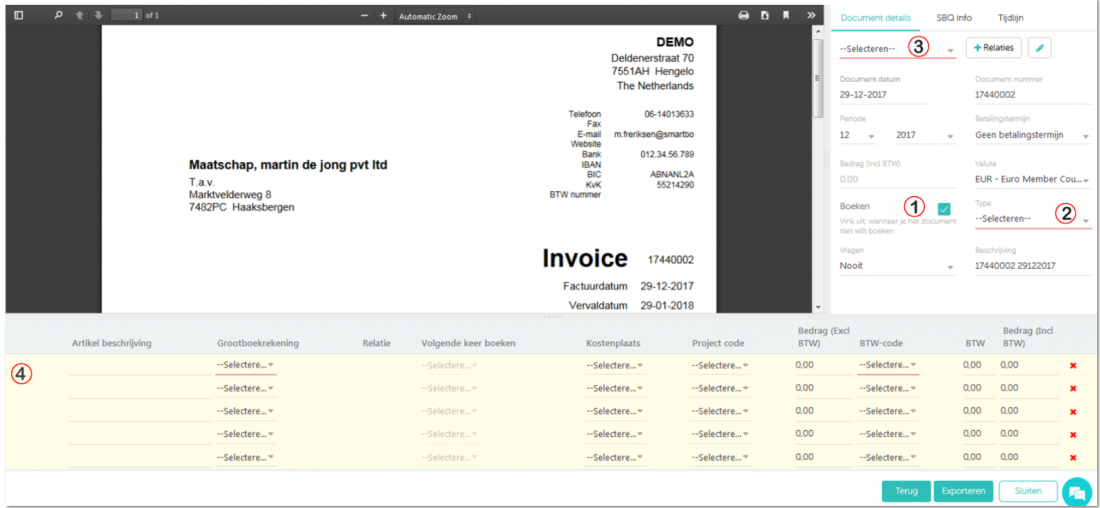
- Go to Document hub Review tab.
- Search for your non-bookable document and then click on Magnifier.
- You land on Document detail page; Select the check box ‘Book’, and select the Type that you want: ‘Purchase’ or ‘Sale’.
- Select the contact name on which you want to process, and fill up all the highlighted fields.
- You can also add/review lines, and click on ‘Export& next’ button.
Coding rule can be changed from different pages as below:
- Go to Contact list Standard view; double click on the Relatie and you see coding rule drop down. Select the coding rule, and assign specification(s).
- Go to Document hub Review page Document with comment section; new contact comment you can change the coding rule.
- Go to Document hub Review page Search the document you want to review Click on magnifier(Document detail page) Document detail tab on right hand side Click on edit icon button; On click of it you see edit contact pop up now you can change coding rule and specification(s).
- Go to processing settings Cost coding; you can synchronize cost code by clicking on ‘Sync’ button, which is placed on top right corner.
- You can map cost code to Contact or Account code, you can do so by clicking on ‘+new’ button and for mapping cost code to Contact or account code.
Note: Sync takes time for offline accounting system. (Max 30 min)
In Organization dashboard Go to Template Click on ‘+New’ button. You see pop up window for creating new template, enter all required details and assign administration(s).
Yes, in Smartbooqing environment you can link multiple accounting systems
AcciountView
AFAS
eAccounting Visma
Exact Onine
Twinfield
Unit4.
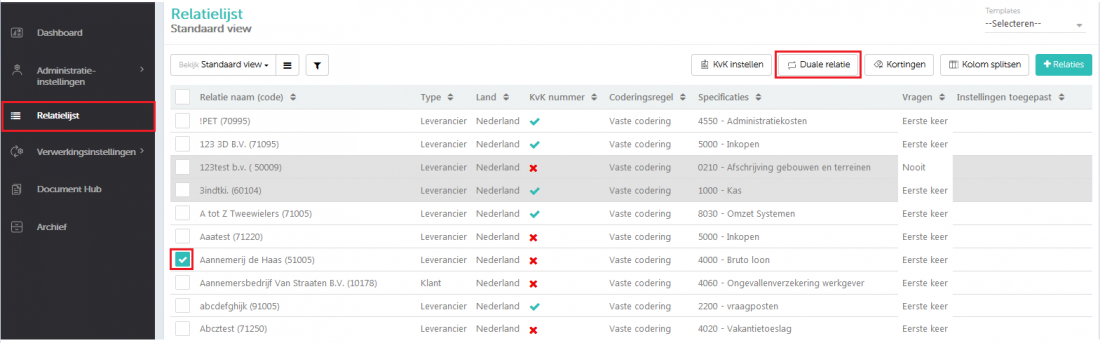
- If there is one relationship, who is both a customer and a supplier. Then you can set Duale relatie setting on basis of a keyword.
- Go to ‘Relatielijst’ > Sort by relatie > select the relatie name> Click on ‘Duale relatie’.