Supported Authenticators
In SmartUBL, we support the following Authenticators:
- Google authenticator
- Microsoft authenticator
- Duo
Importance of Authenticator Codes
All authenticators that grant 2FA also confer a recovery code(s). Always back them up, Copy and save the recovery codes securely at the location of your choice. Users can hide them discreetly online by encrypting them in any vaulted storage.
Most importantly, users can write them down too. These codes are vital in identifying your user account and are mandatory if you want to recover your account
How does it work?
Enabling 2FA
To set the 2FA for a user profile, the user will have to log in using their credentials and then navigate to the “User profile” –> “Security”, they will find the option of the 2FA feature, as shown below
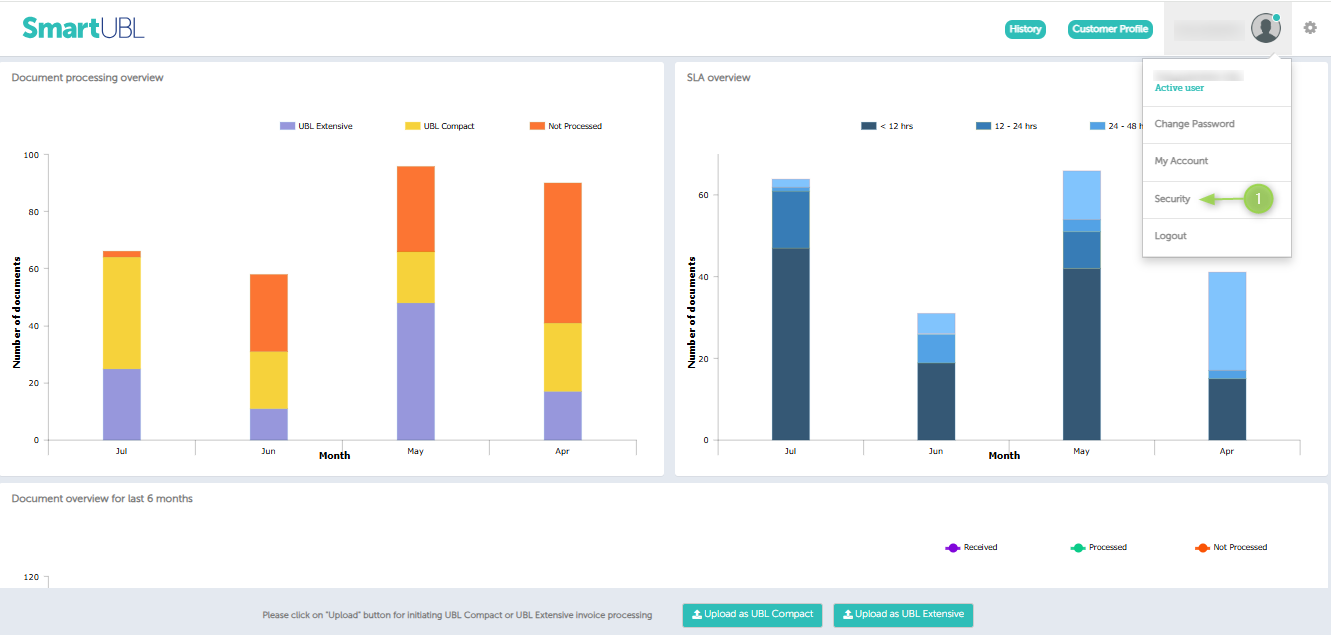
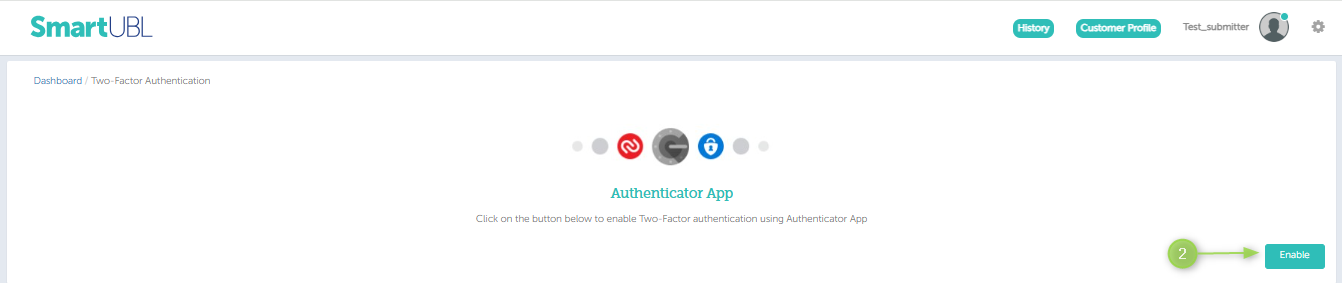
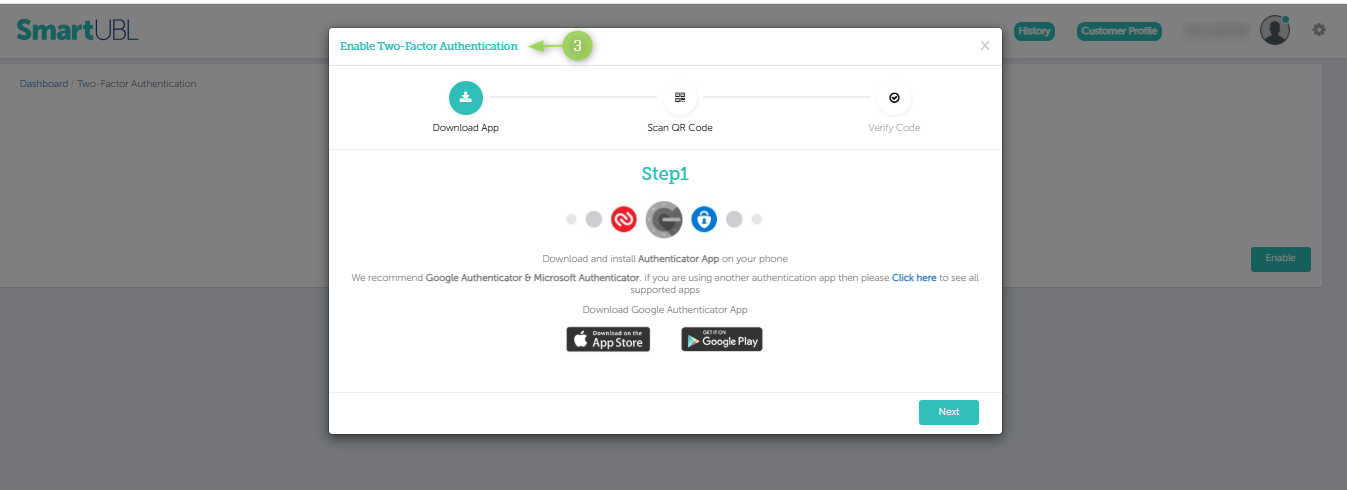
Once there, the 2FA menu to either Enable or Disable the functionality will be seen. If it is the first time, the 2FA is being set up then only the Enable menu will be shown. Once the “Enable” button is clicked, another window will pop up and you can follow the steps as following:
- Download the application: Users will have to download an Authenticator app of their choice from the links provided on this page. (Microsoft/Google Authenticator app is recommended).If a user already has an app installed, they can simply click on the “Next” button.
- Scanning the QR Code: The user must then scan the QR shown, from their authenticator app. If the user is unable to scan the QR on the app then the user needs to manually type in the code displayed in the grey area. This code must be kept safe as it may be required in case of account recovery. This code is unique for every user and must be cautiously stored. A user must check the “I have noted down code” box to enable the Next button.
- Verify Code: To check if the authenticator app has been correctly configured, the user must enter their login password (for SmartUBL) and the code which is being displayed in the authenticator app. Once done, click on “Register”. Note: The authenticator app code which is being generated changes every 30 seconds. Once
The 2FA has been enabled, i.e., the code has been verified (from Step 3), the user will be logged out of SmartUBL and they will have to log in again using their Email, Password, and the 2FA code from the configured mobile.
Disabling 2FA
The user goes to the same menu as they did for Enabling 2FA which is:
“User profile” –> “Security” –> Two Factor Authentication
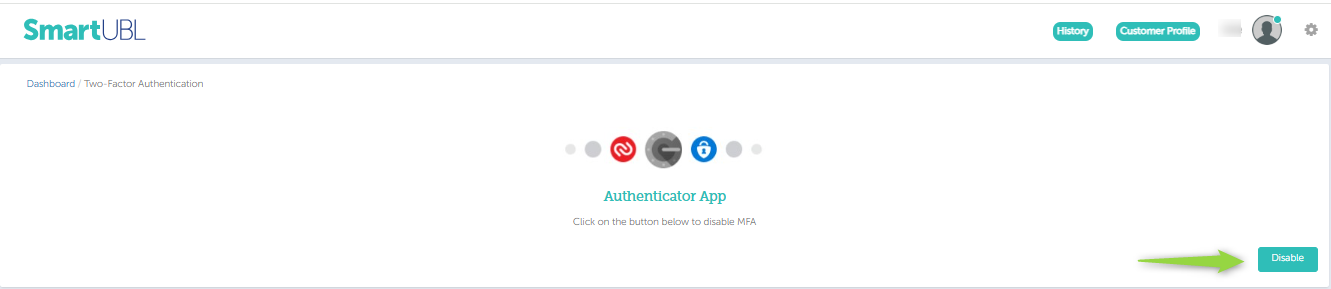
The user clicks on “Disable.” They will have to enter their SmartUBL login password and the latest authenticator code and click on “Disable”.
If the feature has been correctly disabled, then the user will be logged out of SmartUBL and can log in as usual afterward.
Trust Device and Remember for 14 Days
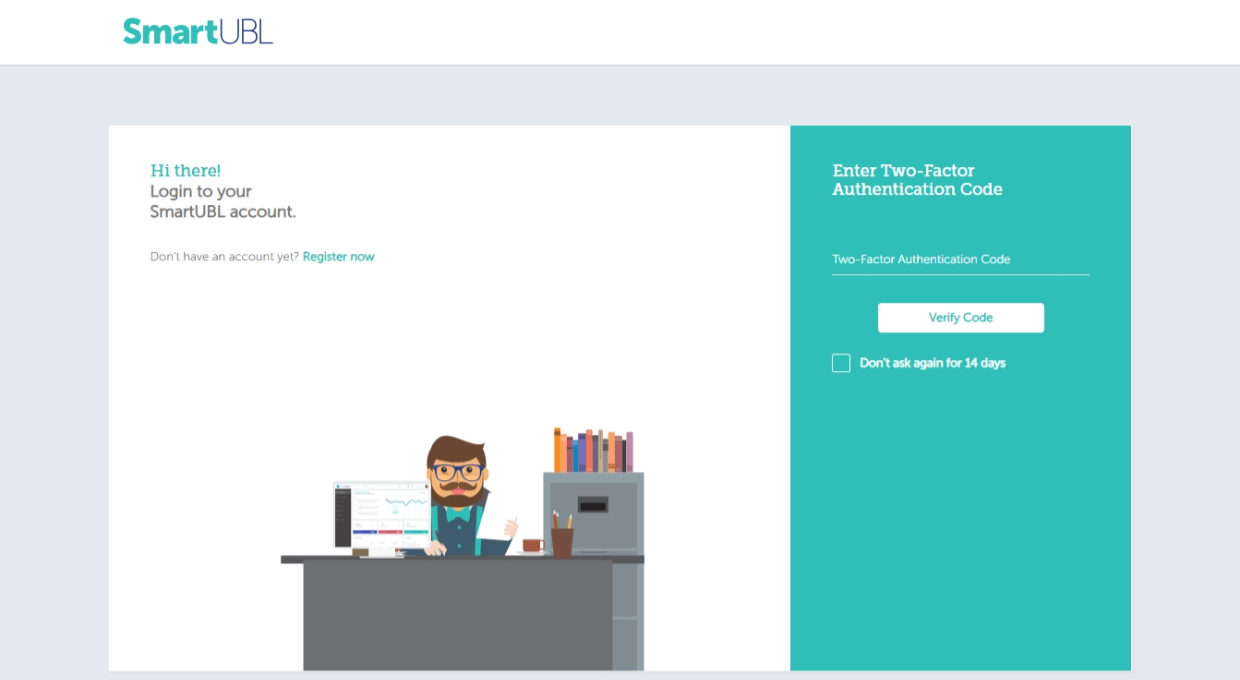
- If 2FA is enabled for the user, the system first checks whether the current device is marked as trusted.
- If the user previously selected “Remember this device” and the 14-days trust period is still valid, the OTP verification step is skipped, and the user is granted access directly.
Account Lockout
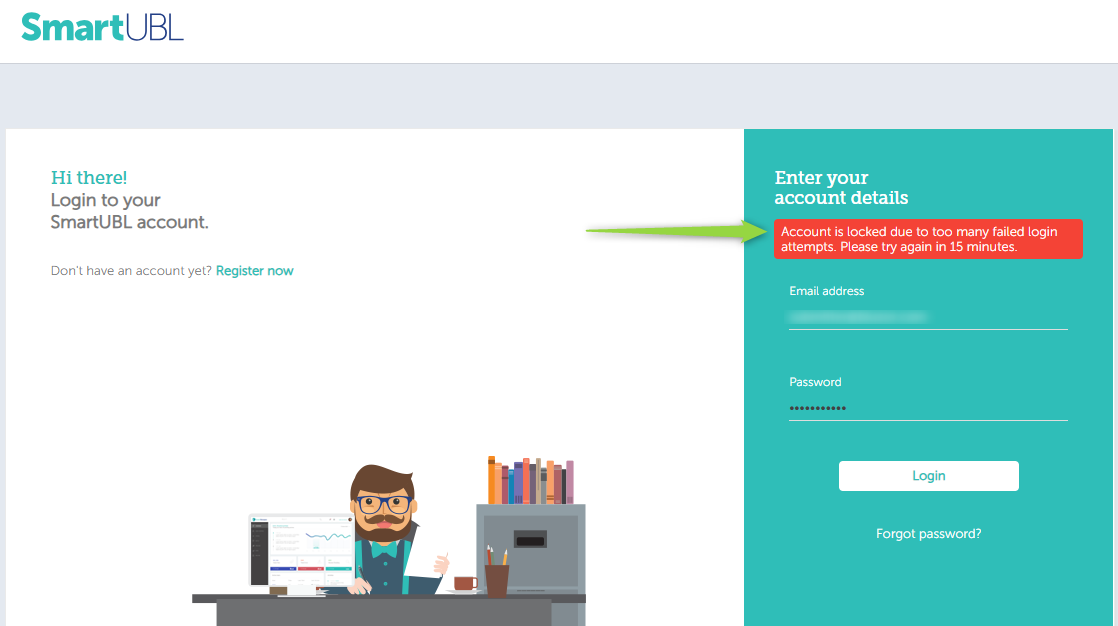
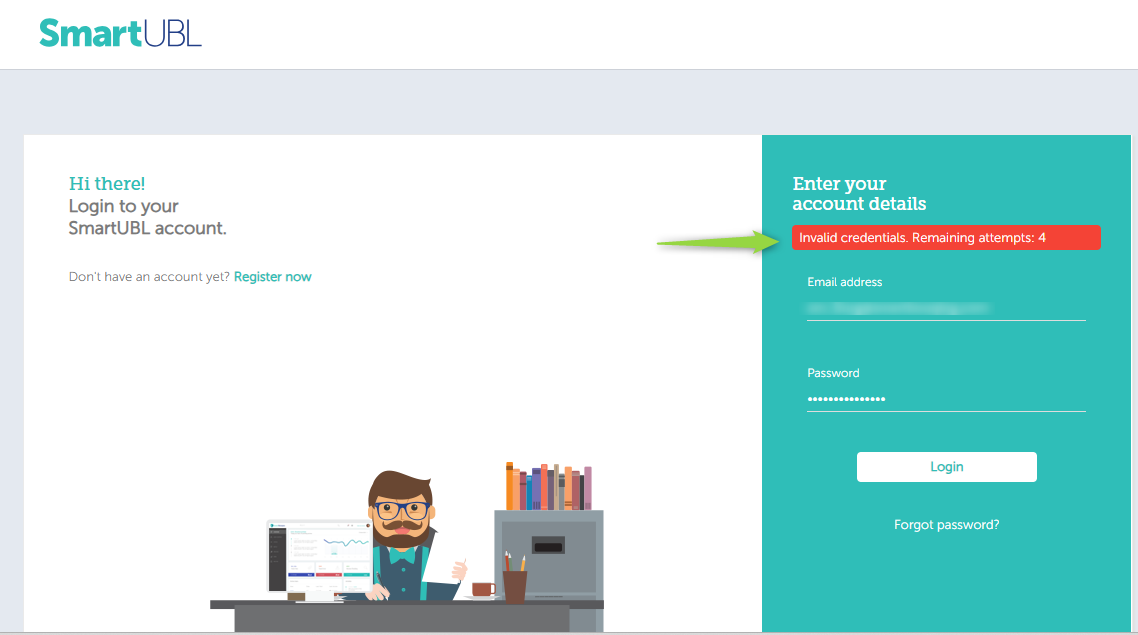
If invalid login credentials are entered, the system displays an error message and indicates the number of remaining login attempts available to the user.
If an invalid Two-Factor Authentication (2FA) code is entered, the system displays an error message and indicates the number of remaining verification attempts available to the user.
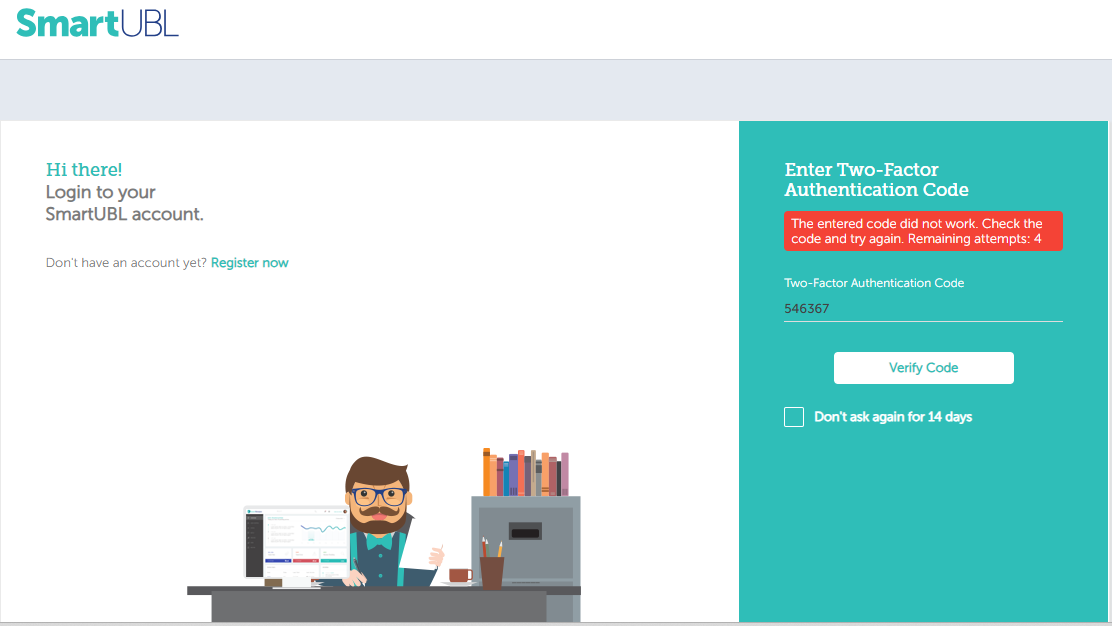
Account Lockout: After five consecutive unsuccessful login attempts, the system automatically locks the user account for 15 minutes. During this period, the user will be unable to log in until the lockout duration expires.